


How to Play Mobile Legends on PC: Your Ultimate Setup Guide for a Smooth Gaming Experience
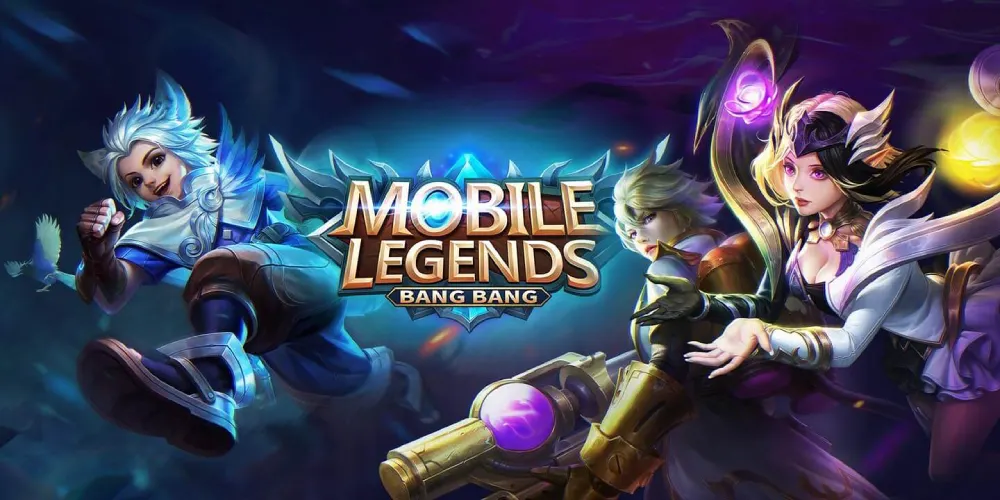
Hey there, fellow Mobile Legends fans! If you love the thrill of a good battle in Mobile Legends: Bang Bang but wish you could enjoy it on a bigger screen, I’ve got some exciting news for you. Playing Mobile Legends on PC is a total game-changer! Imagine having larger visuals, more precise controls, and forgetting all about sweaty palms and battery life issues. Whether you're aiming to climb the ranked ladder or just want a cozy setup for tackling your daily missions, making the switch to PC is definitely the way to go.
In this guide, I’m here to share everything you need to know about playing Mobile Legends on your computer. I’ll walk you through the best emulators out there, the system requirements you should have, and tips to ensure you get the smoothest, lag-free performance imaginable. So, let’s dive right in and level up your gaming experience!
🧠 Why Should You Play Mobile Legends on PC?
Before we dive into the how-to, let’s explore the reasons why you might want to make the switch:
First off, a bigger screen means you’ll have much better visibility during those intense battles. It’s all about seeing every detail!
Plus, using a mouse and keyboard gives you enhanced mechanical control, making it easier to execute those precise moves.
Say goodbye to overheating phones! Playing on PC keeps your device cool and running smoothly.
And let’s not forget about battery life – no more worrying about draining your phone’s battery or being interrupted by incoming calls at a crucial moment.
Playing on a PC is especially handy if you’re juggling multiple accounts, managing a team, or grinding for those awesome skin events while multitasking.
🧰 Here are the 3 Best Ways to Play Mobile Legends on PC
Now, let’s break down some of the most popular and reliable methods. Each option has its own pros and cons, so you can choose what works best for your setup.
Google Play Games: Your Go-To for the Best Overall Experience
If you're looking for native PC performance, you can't go wrong with Google Play Games. They've rolled out a dedicated Windows version that officially supports Mobile Legends, and get this - Moonton even stepped in to help optimize the experience!
Why You’ll Love It:
It’s officially backed by both Google and Moonton, so you know it’s the real deal.
Say goodbye to annoying ads and bloatware- this is a clean experience!
Enjoy full keyboard and mouse support for a more immersive gameplay.
Experience super stable FPS and smoother animations that elevate your game.
How to Get Started:
1. Head over to the official site and download the Google Play Games Beta.
2. Install it and complete the setup process.
3. Log into your Google account.
4. Search for and install Mobile Legends: Bang Bang.
5. Launch the game and dive right in!
System Requirements:
OS: Windows 10 (version 2004) or newer
RAM: At least 8 GB
Storage: An SSD with 10 GB of free space
GPU: Intel UHD Graphics 630 or better
CPU: A minimum of 4 physical cores (Intel is preferred)
Don’t forget to visit the MLBB Marketplace for more exciting options! Happy gaming!
BlueStacks (Your Go-To for Custom Controls)
If you're on the hunt for an emulator that lets you customize your controls and offers advanced features, BlueStacks is definitely worth considering. It's a favorite among gamers and comes loaded with cool tools like macros, the ability to run multiple instances, and FPS optimization to enhance your gameplay.
👍 Here are some pros to think about:
Access to the Google Play Store
Customizable keymapping to suit your style
Support for running multiple instances at once
Game-specific tweaks to boost performance
⚠️ But there are a few drawbacks:
It can be a bit demanding on your RAM and CPU
You may find some pre-installed apps and ads
If you’re using a low-end PC, you might experience occasional lag spikes
System Requirements:
OS: Windows 10
RAM: 8GB or more
Processor: Intel or AMD Multi-Core
Graphics: Intel, NVIDIA, or AMD
Storage: An SSD is recommended for the best experience
Check out our guide on How to Sell Accounts for this game
Learn more about How to Buy Accounts for this game
NoxPlayer: A Lightweight Alternative for Gamers on a Budget
If you're on the hunt for a reliable emulator that won't weigh down your older or budget PC, NoxPlayer might just be what you need. It's a solid choice if you're looking to dive into games like Mobile Legends. Just a heads-up, though-it might not run as smoothly or be as finely tuned as some of its competitors.
👍 What's Great About NoxPlayer?
User-Friendly: NoxPlayer is really straightforward to set up and use, making it a great option for both newcomers and experienced gamers alike.
Low System Requirements: This emulator is designed to run on less powerful machines, so you won't need to upgrade your hardware just to enjoy your favorite mobile games.
Control Customization: It offers decent options for customizing your controls, letting you play comfortably the way you like.
⚠️ However, it's not all perfect. Here are a few things to consider:
Crash Rates: Unfortunately, NoxPlayer has a higher crash rate compared to some other emulators, which can be a bit frustrating during intense gaming sessions.
Stability Issues: You might experience some performance hiccups, making it not as stable as you'd hope for.
Frame Consistency: There can be moments when the frame rate doesn't hold up, which could affect your gaming experience.
System Requirements
Before you dive in, here are the system requirements you'll need to meet:
Operating System: Windows 7/8/10
RAM: At least 4GB
CPU: Intel or AMD Dual Core
GPU: Intel, NVIDIA, or AMD
Storage: 1GB of available space
So, if you're looking for a lightweight emulator that gets the job done without demanding too much from your system, give NoxPlayer a shot. Happy gaming!
What's the Best Way to Play?
When it comes to playing Mobile Legends on your PC, you might be wondering which emulator is the best fit for your gaming style. Let's break down a few options:
Method | Best For | Performance | Ads/Bloatware | Support |
|---|---|---|---|---|
Google Play Games | Official, smooth, stable | ⭐⭐⭐⭐⭐ | ❌ | ✅ Full |
BlueStacks | Multi-instance, custom controls | ⭐⭐⭐⭐ | ⚠️ Yes | ✅ Good |
NoxPlayer | Older PCs, simple interface | ⭐⭐⭐ | ⚠️ Yes | ❌ Limited |
Verdict: If your PC meets the requirements, Google Play Games is your best bet. It's lightweight, clean, and has been directly optimized by the Mobile Legends team, ensuring a seamless gaming experience.
🧭 Bonus Tips for Better Performance
Want to take your gameplay to the next level and enjoy buttery smooth matches? Here are some handy tips for you:
Enable High Performance Mode in Windows
In-game: Set MLBB to High Frame Rate
Turn off background apps before launching the game
Use a wired internet connection or ensure your WiFi is strong
Restart your emulator weekly to avoid pesky memory leaks
🚀 What's Next?
Now that you're geared up to dominate in Mobile Legends on your PC, why not elevate your experience even further?
Explore our Mobile Legends account marketplace - Buy or sell ranked-ready accounts
Grab rare skins and bundles - Some limited skins are available only through accounts
Whether you're climbing to Mythic rank or just enjoying some casual games with friends, you deserve the best possible experience. It all starts with playing Mobile Legends on PC the right way!
You might also like