
WoW Forever FPS Boost: Best Settings for Low-End PCs and Fixes for FPS Drops


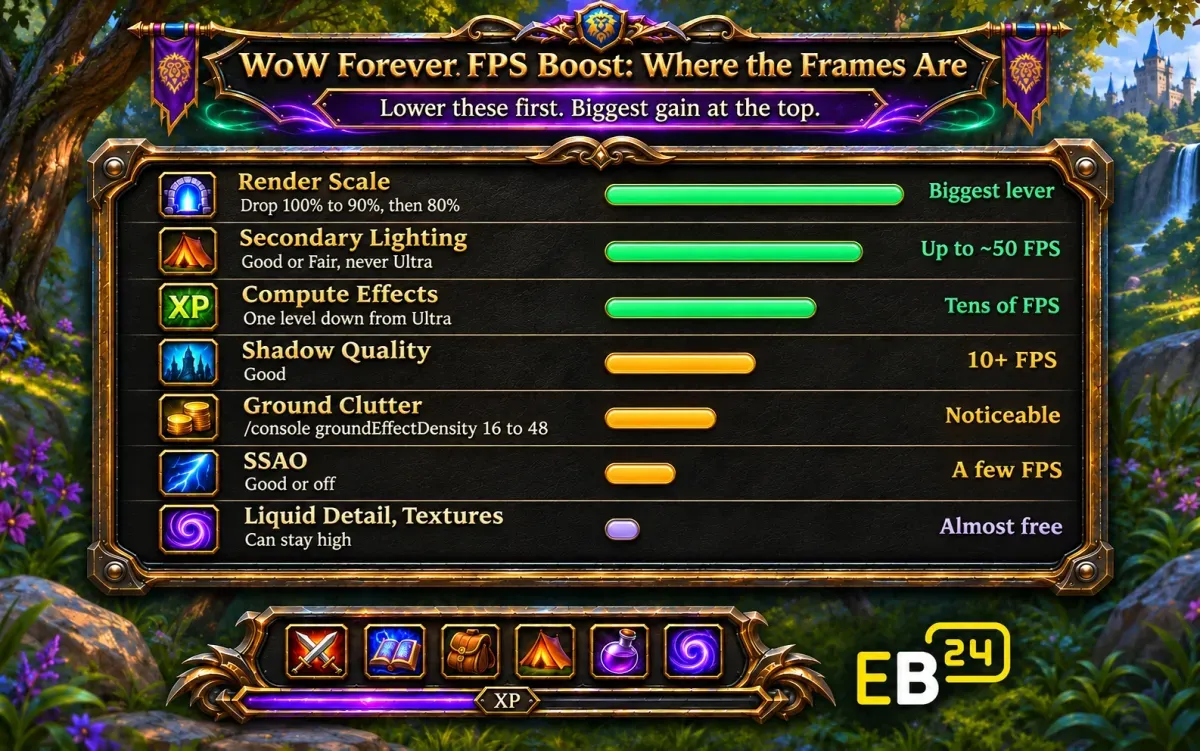
The fastest way to boost FPS in WoW Forever is to lower Render Scale to 90% or 80%, set Secondary Lighting and Compute Effects to Good, drop Shadow Quality one or two levels, and turn grass density down with /console groundEffectDensity 16. Those four changes recover most of the frames on a weak PC, while settings like Liquid Detail and Texture Resolution cost almost nothing and can stay high. If your FPS falls over a long session, or is low even on minimum settings, the cause is usually not graphics at all: switch off Target FPS, clear the cache, update your GPU driver and test without addons.
Setting | Recommended for FPS | FPS cost at high values |
|---|---|---|
Render Scale | 90%, then 80% | The biggest lever |
Secondary Lighting | Good or Fair | Up to around 50 FPS between High and Ultra |
Compute Effects (fog and mist) | One level below Ultra, Good on weak PCs | Tens of FPS toward Ultra |
Shadow Quality | Good | 10+ FPS between max and one or two levels lower |
Ground Clutter |
| Higher than you would expect |
SSAO | Good or off | A few FPS |
Spell Density | Essential | Little in normal play, more in raids |
Liquid Detail | High | Negligible |
Texture Resolution | High | No measurable impact |
View Distance | Can stay fairly high | Low, helped by Forever's fog |
Step 1: The Settings That Cost the Most FPS
Open Game Menu > Options > Graphics and change these in order. Test in the same busy spot, such as a capital city, after each change.
Render Scale
Render Scale sets how many pixels the game draws before it scales the image to your screen. At 80% on a 1440p monitor, the game renders far fewer pixels, and the gain is bigger than any other single setting. Start at 90%, go to 80% if you need more. To keep the image from going soft, add:
/console ResampleAlwaysSharpen 1WoW has no DLSS and only an old version of AMD FSR, so a lower render scale plus sharpening is usually the cleaner option.
Secondary Lighting
Light from torches, braziers and other secondary sources. Testing showed a gap of up to around 50 FPS between High and Ultra. Use Good on most PCs and Fair on weak ones. Players also linked high Secondary Lighting to stuttering.
Compute Effects
Fog, mist and similar effects. It costs tens of FPS on the way to Ultra, and it is the first thing to lower if your PC struggles. Set it to Good.
Shadow Quality
Shadows are expensive. Going from max down one or two levels returns 10 or more FPS. Good is the sweet spot.
Ground Clutter (Grass)
Grass and small plants cost more than people expect, especially if you used our graphics console commands to push them to 256. For FPS, go the other way:
/console groundEffectDensity 16
/console groundEffectDist 100
groundEffectDensity 48 matches the menu's highest grass setting, so anything from 16 to 48 is a sensible range for a weaker PC.
Step 2: Settings You Can Leave High
These look good and cost almost nothing, so do not sacrifice them:
Liquid Detail: negligible cost.
Texture Resolution: no measurable impact on most GPUs with enough video memory.
View Distance: low cost, because Forever's fog limits what gets drawn anyway.
Projected Textures: keep it on. It shows ground effects in combat that you need to see.
Step 3: Frame Rate Settings
Target FPS: players reported their FPS more than doubled after switching it off. Try it both ways.
Max Foreground FPS: set a cap you can actually hold in busy areas, a little below your monitor's refresh rate. Steady frames feel smoother than a high number that keeps dropping.
Max Background FPS: keep it low, for example 30, so the game does not burn your GPU while you are alt-tabbed.
Console versions:
/console maxFPS 60
/console maxFPSBk 30
Step 4: The Low-End PC Preset
Copy this into chat for a quick low-end setup, then fine-tune in the menu:
/console renderScale 0.8
/console ResampleAlwaysSharpen 1
/console groundEffectDensity 16
/console groundEffectDist 100
/console weatherDensity 0
/console shadowTextureSize 1024
/console maxFPSBk 30
weatherDensity 0 switches rain and snow particles off, which helps in busy zones. shadowTextureSize 1024 lowers shadow resolution. If you want to go back to the high-end look later, our graphics guide has the full list.
FPS Drops Even on Low Settings? Fix These First
If Low and Ultra give you about the same FPS, your graphics settings are not the problem. Work through this list:
Switch off Target FPS (see above).
Clear the cache. Close the game, delete the
Cachefolder inside your WoW Forever installation folder, and restart. The game rebuilds it. Players reported big jumps after this.Update your GPU driver. Old drivers are a common cause of low FPS in a new game.
Disable all addons and test. If FPS jumps, turn them back on one at a time to find the culprit. Some performance addons change settings themselves; one popular one lowers your field of view and causes pop-in by default.
Relog if FPS sinks over time. During the beta, players measured FPS falling from about 110 to 40 over an hour and a half of play because of a reported memory leak. Logging out to character select and back in reset it. If you see the same pattern on live, relog every hour.
Try the other display mode. Switch between Windowed (Fullscreen) and Fullscreen and compare.
Close background apps such as overlays, browsers and capture software.
Check the CPU or GPU label. The frame counter can show whether you are CPU bound or GPU bound. If you are CPU bound, lowering graphics settings helps little; fewer players around you and fewer addons help more.
Lag Is Not the Same as Low FPS
If your FPS counter is fine but abilities fire late, that is latency, not FPS. Check your ping in the game menu. High ping comes from your connection or routing, not your graphics card, so graphics settings will not fix it. A wired connection instead of Wi-Fi is the first thing to try.
Busy Zones and Raids
Since the November 9 hotfix, crowded zones hold fewer players per copy, which already helps performance in hubs. Raids open on December 9, and 40-player Onyxia is the most demanding fight in the tier. Before raid night, set Spell Density to Essential and lower Shadow Quality a step. More on the raids in our WoW Forever raids guide, and every recent change in the WoW Forever patch notes roundup.
Is It Safe to Change These Settings?
Yes. Every setting here is a menu option or one of Blizzard's own console variables. No file edits, injectors or third-party tools are needed, and nothing here can get your account in trouble.
More WoW Forever Help
Smooth frames make leveling and dungeons far more fun. Read our fastest way to level after the XP changes and the best WoW Forever addons, keeping the addon tip above in mind. If your PC struggles with group content, WoW Forever dungeon runs and raid clears are played by an experienced team, and WoW Forever leveling takes your character to the level you pick. Everything else is on the WoW Forever boosting hub.
FAQ
How do I increase FPS in WoW Forever? Lower Render Scale to 90% or 80%, set Secondary Lighting and Compute Effects to Good, drop Shadow Quality a level and lower grass density with /console groundEffectDensity 16.
What setting causes the biggest FPS drop in WoW Forever? Render Scale, then Secondary Lighting on Ultra and Compute Effects on Ultra.
Why does my FPS drop over time in WoW Forever? A memory leak was reported during the beta, with FPS falling over long sessions. Logging out to character select and back in resets it.
Why is my FPS low even on low settings? Your graphics settings are probably not the limit. Turn off Target FPS, clear the Cache folder, update your GPU driver and test without addons.
What are the best WoW Forever settings for a low-end PC? Render Scale 80% with sharpening on, Secondary Lighting Fair, Compute Effects Good, Shadows Good or lower, grass density 16 and weather off. The full preset is above.
Do WoW Forever console commands improve FPS? Yes, if you use them to lower settings. renderScale, groundEffectDensity, weatherDensity and shadowTextureSize all affect performance.
Is lag the same as low FPS? No. Lag is high ping from your connection. Low FPS comes from your PC. Check both before you change settings.
You might also like