WoW Forever Best Graphics Settings: Console Commands That Make the Game Look Amazing


You can make WoW Forever look dramatically better by typing 23 console commands into chat, one line at a time: they fill Azeroth with dense grass that renders far into the distance, sharpen the image, push back the horizon fog, upgrade water, shadows, lighting and particles, and tune the colours. This is the exact setup we play with. World of Warcraft: Forever launched on November 4, 2026 on the modern WoW engine, so these built-in settings work straight away, with no addons or file edits.
WoW Forever best visual console commands
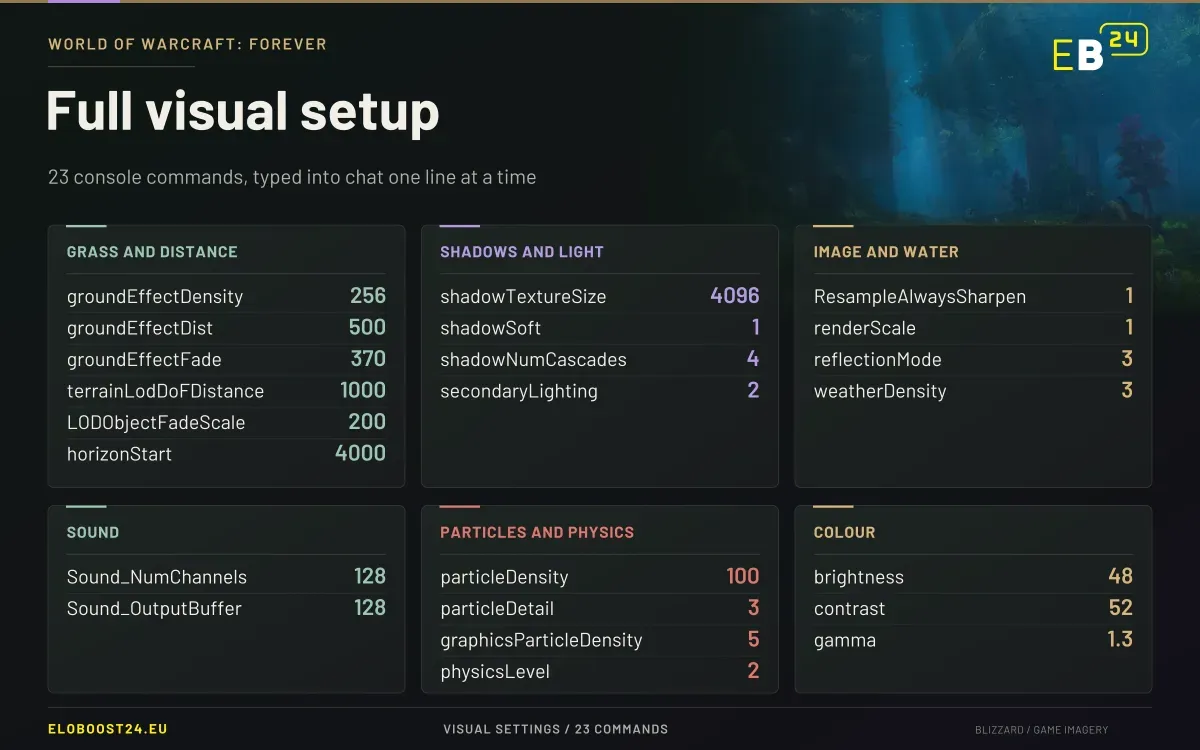
The Full Command List
Type these into the chat box one line at a time, pressing Enter after each:
/console groundEffectDensity 256
/console groundEffectDist 500
/console groundEffectFade 370
/console terrainLodDoFDistance 1000
/console LODObjectFadeScale 200
/console reflectionMode 3
/console weatherDensity 3
/console ResampleAlwaysSharpen 1
/console shadowTextureSize 4096
/console shadowSoft 1
/console secondaryLighting 2
/console brightness 48
/console gamma 1.3
/console Sound_NumChannels 128
/console Sound_OutputBuffer 128
/console physicsLevel 2
/console contrast 52
/console renderScale 1
/console horizonStart 4000
/console shadowNumCascades 4
/console particleDensity 100
/console particleDetail 3
/console graphicsParticleDensity 5
How to Use Them
Set your normal graphics menu first. Choose your preset and sliders in Options, then close the menu.
Type each command into chat, one line at a time.
Or save them as macros (type
/macro) so one click reapplies everything. A macro holds up to 255 characters, so the list is split into 3 macros below.
Settings save to your Config.wtf file when you exit, so they normally stay after logging out.
One trap: moving the Ground Clutter slider in the graphics menu rewrites the grass values. If your grass suddenly looks normal again, you touched that slider. Run the commands again after any graphics menu change.
Ready-Made Macros
Macro 1
/console groundEffectDensity 256
/console groundEffectDist 500
/console groundEffectFade 370
/console terrainLodDoFDistance 1000
/console LODObjectFadeScale 200
/console reflectionMode 3
/console weatherDensity 3
/console ResampleAlwaysSharpen 1
Macro 2
/console shadowTextureSize 4096
/console shadowSoft 1
/console secondaryLighting 2
/console brightness 48
/console gamma 1.3
/console Sound_NumChannels 128
/console Sound_OutputBuffer 128
/console physicsLevel 2
/console contrast 52
Macro 3
/console renderScale 1
/console horizonStart 4000
/console shadowNumCascades 4
/console particleDensity 100
/console particleDetail 3
/console graphicsParticleDensity 5
What Each Group Does
Grass and ground detail: groundEffectDensity 256 raises grass and flora density from the default 48, groundEffectDist 500 makes grass render out to 500 instead of 200, and groundEffectFade 370 (default 70) fades it in smoothly instead of popping in a few steps ahead of you. Plains stop looking like flat textures and turn into real meadows.
Draw distance and level of detail: horizonStart 4000 pushes the horizon fog back so distant mountains stay visible, while terrainLodDoFDistance and LODObjectFadeScale keep terrain and objects detailed further from the camera.
Image sharpness: ResampleAlwaysSharpen 1 sharpens the whole image without lowering your render scale, and renderScale 1 keeps the game at native resolution.
Water and weather: reflectionMode 3 switches water to a higher quality reflection pass, and weatherDensity 3 makes rain and snow fuller.
Shadows and lighting: shadowTextureSize 4096 gives shadows a higher resolution, shadowSoft 1 softens their edges, shadowNumCascades 4 keeps them sharp at a distance, and secondaryLighting 2 adds extra lighting detail.
Particles and physics: particleDensity 100, particleDetail 3 and graphicsParticleDensity 5 raise spell and environment effect detail, and physicsLevel 2 enables fuller cloth and object physics.
Colour: brightness 48, contrast 52 and gamma 1.3 make colours pop without washing out dark dungeons. This part is taste, so tune it to your monitor.
Sound: Sound_NumChannels 128 and Sound_OutputBuffer 128 let more sounds play at once in busy fights.
Check That a Command Worked
WoW does not always warn you about a typo, so check:
/dump GetCVar("groundEffectDensity")If it prints your value, the setting is active. Names have to be spelled exactly: it is groundEffectDist, not groundEffectDistance, and shadowTextureSize, not shadowShadowTextureSize. Both typos circulate in lists shared online.
A Note on Render Scale
Many lists include /console renderScale 2, which renders the game at double resolution. It costs a lot of FPS, and if a list also contains renderScale 1, the second line simply overwrites the first. With ResampleAlwaysSharpen 1 you get most of the sharpness at native resolution, which is why our setup keeps render scale at 1.
If Your FPS Drops
This setup is built for a strong PC. If the game stutters in busy zones, lower things in this order and test after each change:
groundEffectDensity to 128.
shadowTextureSize to 2048.
groundEffectDist and horizonStart.
shadowNumCascades.
To undo everything, reapply your settings in the graphics menu.
Is This Allowed?
Yes. These are Blizzard's own console variables built into the client. They are not addons, injectors or third-party tools, and they cannot get your account in trouble.
Now Go Enjoy It: Dungeons and Raids
WoW Forever is all about the journey through a rebuilt Azeroth, and with this setup it has never looked better. When you are ready for the hard part, WoW Forever dungeon runs get you through group content with an experienced team, which matters with raids unlocking on December 9 according to Blizzard's roadmap. Coming from Classic? We also run WoW Classic dungeons.
FAQ
How do I make WoW Forever look better? Type the console commands above into chat one line at a time, or save them as macros. The grass commands make the biggest difference.
Do WoW Forever console commands stay after logging out? Yes, they save to Config.wtf, but moving the Ground Clutter slider overwrites the grass values.
Will these commands lower my FPS? On weaker PCs, yes. Lower grass density and shadow resolution first.
Can you get banned for using console commands in WoW Forever? No. They are Blizzard's built-in settings.
How do I check if a console command worked? Type /dump GetCVar("settingName") with the setting's exact name.
You might also like