



How to Optimize Your PC Settings for Better Performance in Valorant

Having optimal performance in Valorant can increase your gameplay experience and give you a better gaming experience. By optimizing your PC settings, you can make sure you have smoother gameplay, reduce your input lag, and improve your overall performance. In this article we will explore multiple ways to optimize your PC settings for better performance in Valorant, helping you in focusing on your skills without technical issues.
Update Graphics Drivers:
 image2.png 393.05 KB
Make sure your graphics drivers are up to date. Graphics driver updates often include bug fixes, performance improvements, and optimizations for specific games. Visit the official website of your graphics card manufacturer (e.g., NVIDIA or AMD) and download the latest drivers for your specific GPU model.
Adjust In-Game Graphics Settings:
 image6.png 170.36 KB
Valorant offers a range of graphical settings that can be adjusted to optimize performance. Start by lowering or disabling resource-intensive settings such as Anti Aliasing, Shadows, and Ambient Occlusion. All of these small details do not give you anything except for improving cosmetics but can decrease your game performance drastically. Set your resolution to the native resolution of your monitor for the best visual clarity. Experiment with different settings while considering the balance between performance and visual quality that suits your preference.
Optimize Windows Power Settings:
 image4.png 36.03 KB
Windows power settings can impact your PC's performance. To ensure optimal performance in Valorant, set your power plan to "High Performance." This setting prevents your system from entering power-saving modes and ensures maximum performance. To adjust power settings, go to Control Panel > Power Options and select the desired power plan.
Disable Background Processes and Apps:
 image5.png 102.61 KB
Running unnecessary background processes and applications can consume system resources, leading to decreased performance in Valorant. Before playing, close any non-essential programs and disable startup applications. Press Ctrl + Shift + Esc to open the Task Manager, navigate to the "Startup" tab, and disable any programs you don't need running in the background.
Adjust Mouse Settings:
 image3.png 26.57 KB
Precise mouse movements are crucial in Valorant. Adjusting your mouse settings can help reduce input lag and improve responsiveness. Disable mouse acceleration in the Windows settings to ensure consistent and accurate mouse movements. Experiment with different DPI settings and find the sensitivity that suits your playstyle.
Disable Full-Screen Optimization:
 image1.png 28.66 KB
Valorant benefits from running in exclusive fullscreen mode rather than fullscreen optimization. To disable fullscreen optimization, right-click on the Valorant shortcut or executable, select "Properties," go to the "Compatibility" tab, and check the box that says "Disable fullscreen optimizations."
Monitor Refresh Rate and V-Sync:
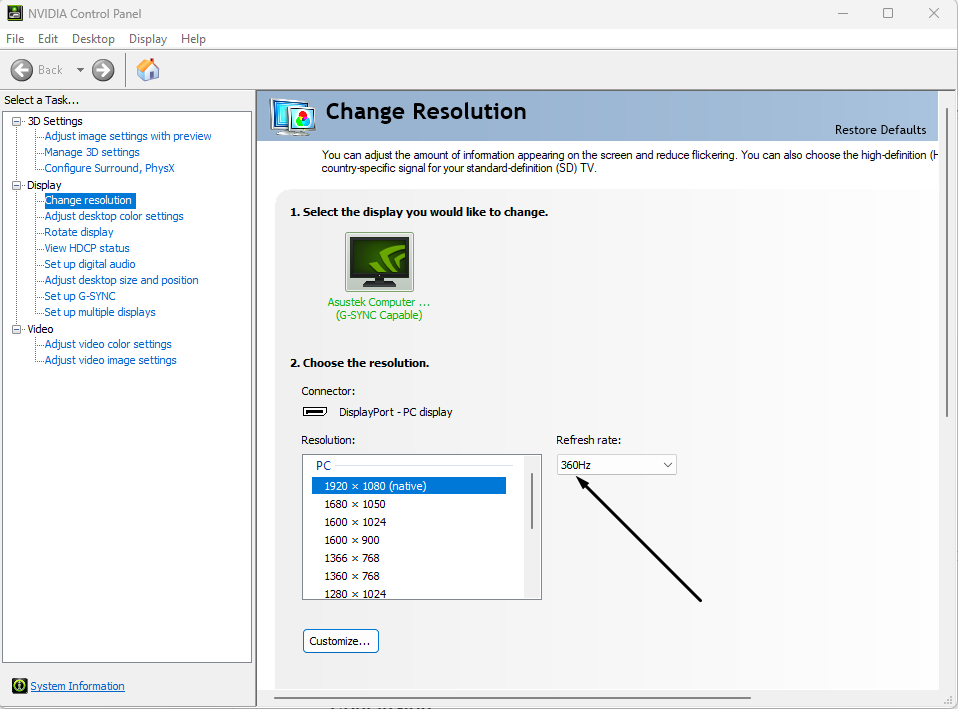 image7.png 64.78 KB
If you have a high-refresh-rate monitor, ensure Valorant is running at the maximum refresh rate supported by your monitor. This can be adjusted in the game's settings or your graphics control panel. Additionally, consider disabling V-Sync to reduce input lag, as it can introduce slight delays between your actions and their display on the screen.
Valorant has recently undergone significant changes that have impacted the gameplay experience. If you're struggling to improve your skills or climb the ranks, you might be interested in the Valorant account boosting offered by Eloboost24. With Valorant ranked wins boosting, you can easily increase your in-game ranking and skills while enjoying a safe and satisfying gaming experience. Check our services, such as Valorant unrated matches and Valorant placement games so you can get the best Valorant experience. We offer LOL boosting services too.
You might also like