




Bulk Upload and Gallery System – Faster Account Uploading at EB24

Managing multiple listings just got easier. With the new Gallery and Bulk Upload features, sellers can now upload accounts faster, more efficiently, and keep their offers perfectly organized. Whether you're a small seller or a wholesaler, these tools are here to boost your marketplace experience.
Table of Contents
How Bulk Upload by Excel Works
FAQ – Frequently Asked Questions
Why We Introduced Bulk Tools
If you're a wholesaler or a seller managing many accounts, the traditional upload method was too slow. That's why we built the Gallery and Bulk Upload tools – to help you work smarter, not harder. Now, uploading hundreds of accounts is faster, cleaner, and better organized.
How Gallery Albums Work
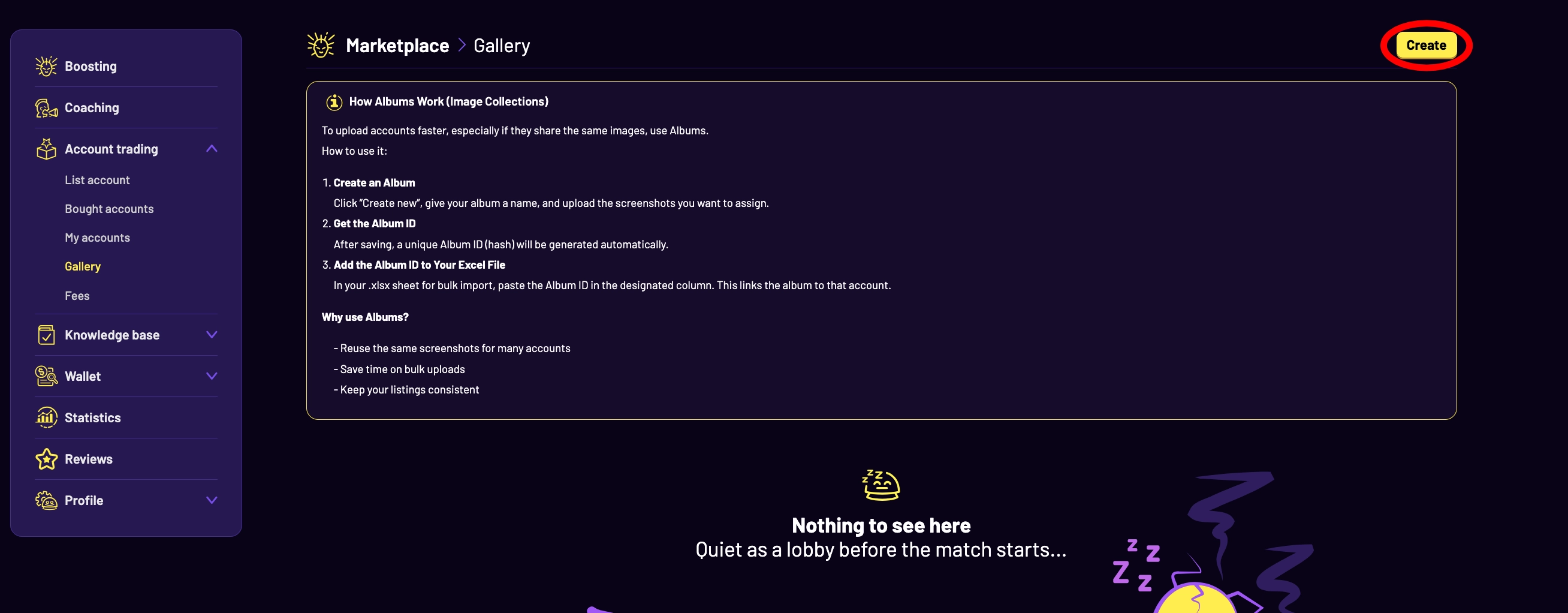
Albums help you upload accounts faster, especially when multiple accounts share the same images. Here’s how to use them:
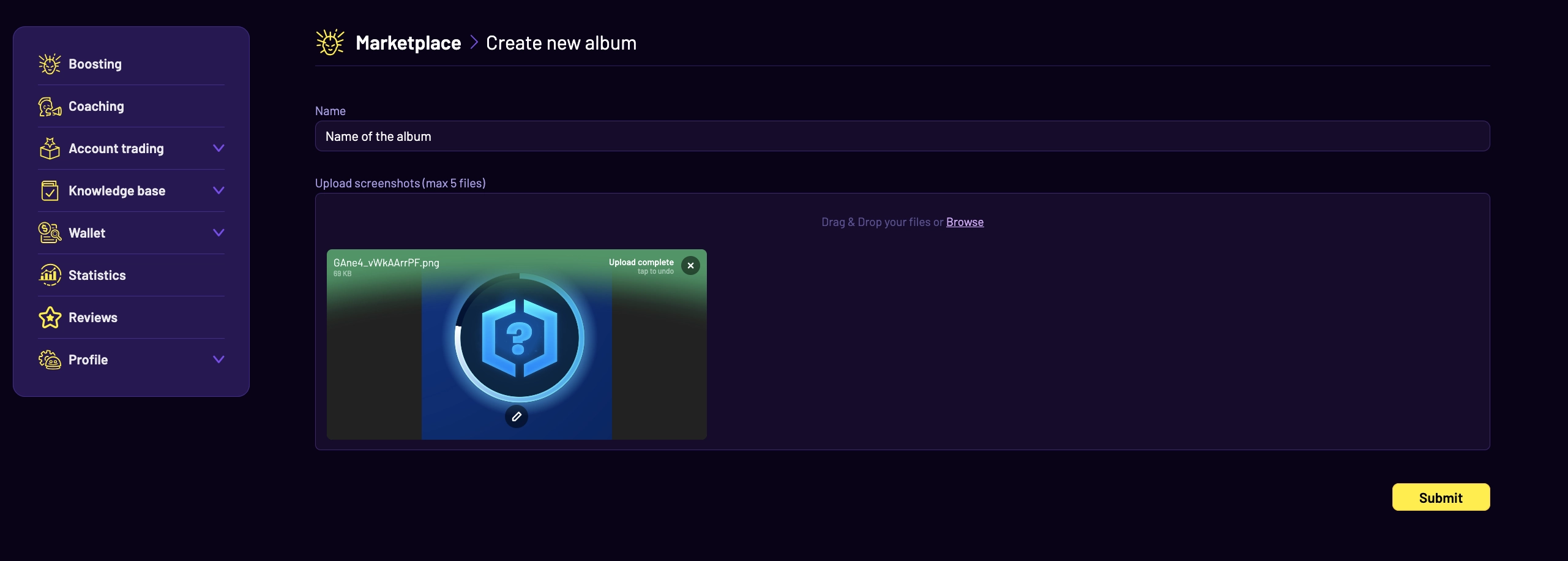
Create an Album: Go to Marketplace > Gallery, click Create, give your album a name, and upload the screenshots.
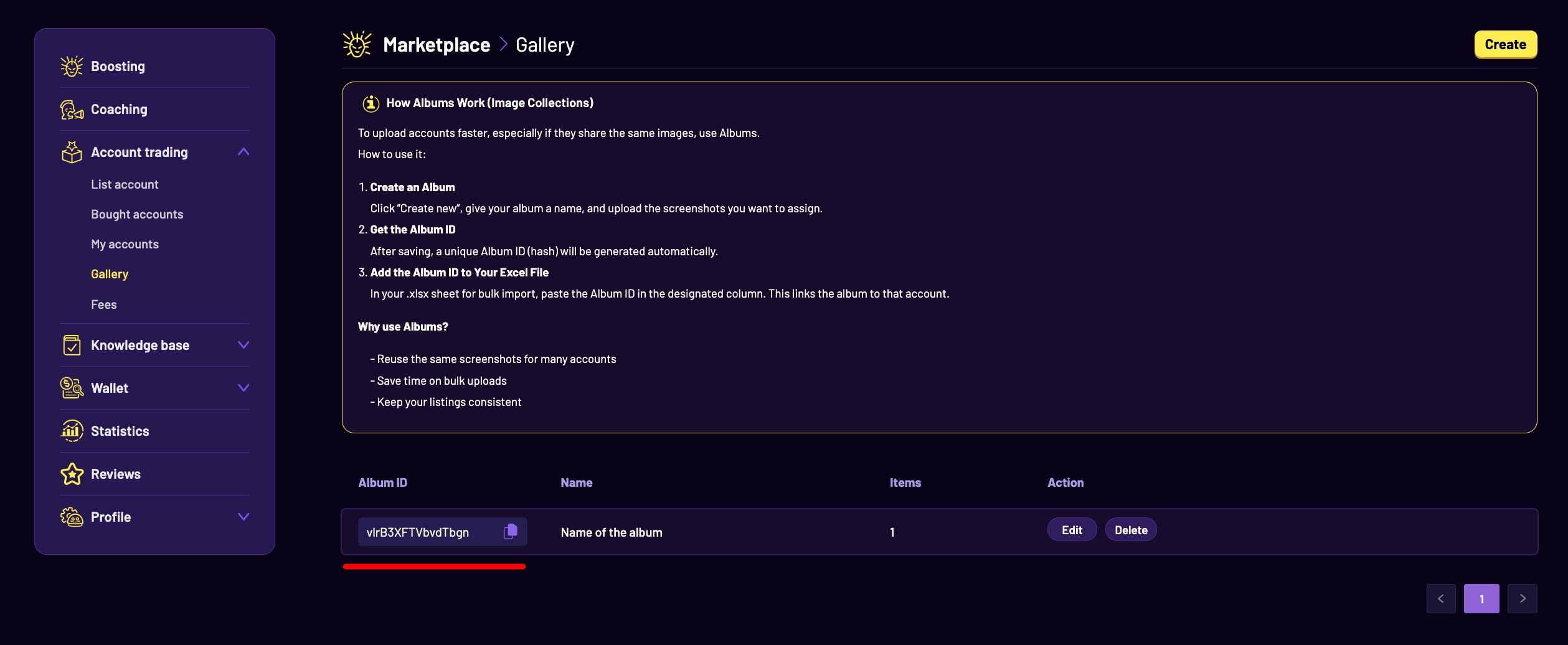
Get the Album ID: After saving, a unique Album ID will be generated automatically.
Add Album ID to Your Excel File: In your .xlsx sheet for bulk import, paste the Album ID in the appropriate column. This links screenshots to each account.
Why Use Albums?
Reuse the same screenshots across multiple accounts
Save time during bulk uploads
Keep your listings consistent and organized
How Bulk Upload by Excel Works
After setting up your Gallery Album, here’s how to bulk upload:
Go to Account Trading > List Account, click Import from file.
Download the provided .xlsx template (make a copy to your Google Drive).
Select your game: League of Legends, TFT, or Valorant.
Fill in your account details and don't forget to paste your Album ID into the appropriate column.
Download your filled .xlsx file from Google Drive and upload it back on the Import page.
Click Check File to start the validation and upload process.
FAQ – Frequently Asked Questions
Do I have to create an album for every listing?
No, one Gallery ID can be reused for unlimited listings.
Where do I paste the Album ID?
In the designated column in your Excel template.
Can I upload hundreds of accounts at once?
Yes! There's no hard limit – add as many rows/accounts in your Excel sheet as you need.
How long does it take for accounts to be listed?
After uploading and passing validation, accounts will move to review and listing automatically within hours.
Is this method mandatory?
No, but it’s highly recommended for sellers managing bulk inventory!
You might also like